I need advice on external hard drive data recovery after a large batch of files suddenly went missing. The drive is still detected by my computer, but important photos, work documents, and folders are no longer showing up. I’m trying to figure out the safest way to recover missing files without making the problem worse.
What I learned after seeing a lot of ‘my drive is dead’ posts
I’ve seen people assume a hard drive was done for, then it turned out the files were still sitting there untouched. That happens more than people think. Losing access is not the same as losing the data.
I’ve had that stomach-drop moment with deleted photos too. It feels bad fast. Still, if the files were deleted from an internal or external drive, there’s a decent shot they were not erased right away. What usually happens is simpler. The file system removes the entries pointing to those files and marks the space as free. The photo data often stays in place until something new writes over it.
First move, stop writing to the drive
This part matters more than anything else.
If the deleted photos were on an external drive, eject it and unplug it now. Don’t browse it. Don’t copy stuff to it. Don’t run random repair tools on it.
If the deleted photos were on your main internal drive, it’s more urgent. Your OS keeps writing temp files, logs, cache, all sorts of junk in the background. I’ve seen people leave the machine on while they “look into options,” then cut their own recovery odds without knowing it. If you can, shut the computer down and connect the internal drive to another computer as a secondary drive before you try recovery.
Keep using the drive, and you risk overwriting the same sectors where the deleted photos still exist. Once new data lands there, software recovery is done. Full stop.
When software makes sense
If the drive spins normally, mounts normally, and doesn’t make bad noises or act flaky, software is usually the first thing I’d try. No need to jump straight into a lab bill for a plain delete mistake.
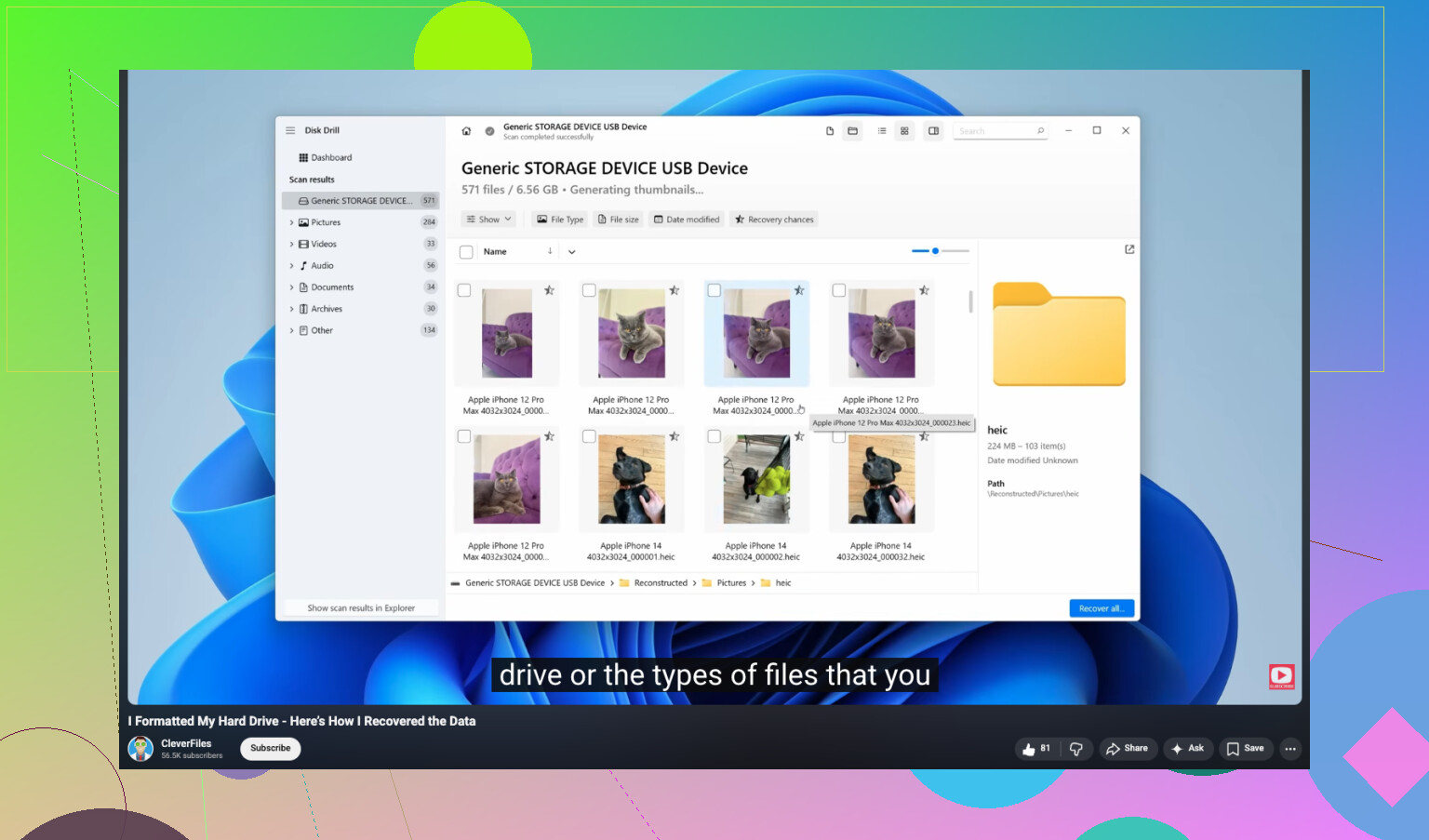
I’ve tested a bunch of recovery apps over time on desktop drives and portable externals. Out of the ones I used, Disk Drill is the one I’d start with for photos. It’s easier to work through than most, and it does a good job finding image and video files by file signature, which helps when the file system is messed up.
One useful detail. If the app shows a clean preview of your photo before recovery, that usually means the file is still intact.
The safer way to do it
- Install it somewhere else
Put the recovery software on a different drive. Not the same internal drive. Not the same external drive. You want zero extra writes to the problem disk.
- Make a disk image first
If the software supports imaging, do that before a deep scan. A byte-for-byte image gives you a snapshot of the drive in its current state and stores it as a file on a healthy disk.
I do this whenever the data matters. If something goes sideways later, you still have the image.
- Scan the image, not the original drive
Once you’ve got the image, scan that file instead of hammering the physical disk again. Less wear, less risk, fewer mistakes.
- Recover files somewhere new
Let the scan finish. Don’t stop halfway because you saw one folder name you recognize. Filter by images, preview what’s there, then recover the files to a different device. Another internal disk, an external SSD, even a spare USB drive if that’s all you have. Do not restore them back to the source drive.
When I would stop and hand it to a lab
There are a few cases where home recovery turns into a bad bet.
- The drive is making ugly noises
Clicking, grinding, beeping, scraping. Those are bad signs. I would stop there.
- It won’t power up
No spin, no light, no response. That points more toward board or internal electrical failure.
- The system doesn’t see it at all
If it won’t show in Disk Management or your OS disk utility, even after changing cables, ports, and enclosures, I’d treat it like hardware trouble first.
- Corruption is severe enough that software can’t work with it
Sometimes the file system is so trashed the usual tools don’t get a clean read. At that point, pushing harder tends to make things worse.
Why the pro route costs more
Recovery labs use cleanroom setups and dedicated hardware to open drives and swap parts safely. It’s expensive, yeah. Still, if the photos are irreplaceable and the drive is failing physically, that’s the lane I’d pick.
One last thing
If you get the pictures back, back them up right away. I learned this one the dumb way. Keep copies in more than one place so one bad delete or one dying drive doesn’t turn into a week of stress.
16 Likes
If the drive still shows up, I’d check for a file system issue before treating this like pure deletion.
A few things to test first.
-
Open Disk Management on Windows or Disk Utility on Mac.
See if the partition size looks normal. If the used space still looks high, your files might still be there and the directory got messed up. -
Turn on hidden items.
On Windows Explorer, enable hidden files and protected OS files. I’ve seen folders “vanish” after attribute changes or malware cleanup. -
Check the drive on another computer.
If the folders appear there, your first system may be reading the drive wrong. -
Look for a changed drive letter or mount point issue.
Some apps save files into paths that stop showing right if the letter changes.
I slightly disagree with @mikeappsreviewer on one point. I would not rush into a deep scan first if the drive is stable and the missing data seems folder-based. A raw scan often brings back a pile of files with bad names and no folder structure. For work docs, folder recovery matters a lot.
What I’d do is this.
First, clone or image the external drive if the data matters.
Then run a file system focused scan on the clone. Disk Drill is fine for this, espeically if you want to preview photos and sort by existing folder paths before recovery. If it finds your old directory tree, recover to a different disk.
If you use Windows, run this read-only check from Command Prompt:
chkdsk X: /scan
Do not use repair mode first. /f writes changes. I would avoid writing anything to the problem drive until you’ve copied data out.
If the missing files followed a format, partition change, or sudden disconnect, this video is a decent walkthrough for formatted drive recovery:
watch this formatted hard drive data recovery guide on YouTube
If SMART stats show reallocated sectors, pending sectors, or read errors climbing, stop messing with it. At taht point, every extra read hurts your odds.
If the drive is still detected, I’d spend 5 minutes ruling out the dumb stuff before doing any recovery. I’ve seen externals suddenly show “missing” folders when the file system index got weird, or when the folders got tagged hidden/read-only after a bad unplug.
A couple things I’d check that complement what @mikeappsreviewer and @shizuka already said:
- Check the drive’s used space. If the space is still occupied, that’s actually a decent sign.
- Try searching the drive with wildcard search for file types like
*.jpg,*.docx,*.xlsxinstead of just browsing folders. - On Windows, open CMD and run
attrib -h -r -s /s /d X:\*.*carefully on a clone or only if you suspect attribute issues. I slightly disagree with people who jump straight to scans every time, becuase sometimes the files were never deleted at all. - If this happened after moving the drive between Windows and Mac, watch for permission weirdness or unsupported metadata nonsense.
- Also check Event Viewer on Windows for disk warnings. That can tell you if the enclosure or drive is starting to flake out.
If you do need recovery software, Disk Drill is a solid option for external hard drive data recovery, especially when files vanished but the disk is still mounting. I’d use it more for recovering the missing folders and exported results, not as the first reflex before basic checks. Their easy Disk Drill review and recovery walkthrough gives a decent quick look at how it handles deleted and missing files.
Big thing: don’t save recovered files back onto that same external. That’s how people turn “missing” into “actually gone.”
One angle missing from @shizuka, @viaggiatoresolare, and @mikeappsreviewer is to check whether this is actually an enclosure or USB bridge problem, not just a file issue. I’ve seen external drives mount fine through a flaky SATA-to-USB board, but directory listings come back incomplete or random folders disappear. If you can, test with a different cable, different port, powered hub removed, and if it’s a desktop-style external, listen for spin-downs during browsing.
I also would not run any “cleanup” or permission-reset tools yet. Those can muddy the situation fast.
A few smart checks that don’t overlap too much with what was already said:
- Compare reported capacity in BIOS, Disk Management, or Disk Utility versus the label capacity. If the size is wrong, the bridge/enclosure may be lying.
- Check if only long filenames or deep folders are missing. That can hint at directory corruption rather than mass deletion.
- If this is NTFS, try reading it from Linux live USB. Sometimes Linux can expose files Windows refuses to show.
- If the drive has ever been used with WD/Seagate backup software, inspect for proprietary backup containers or hidden catalogs.
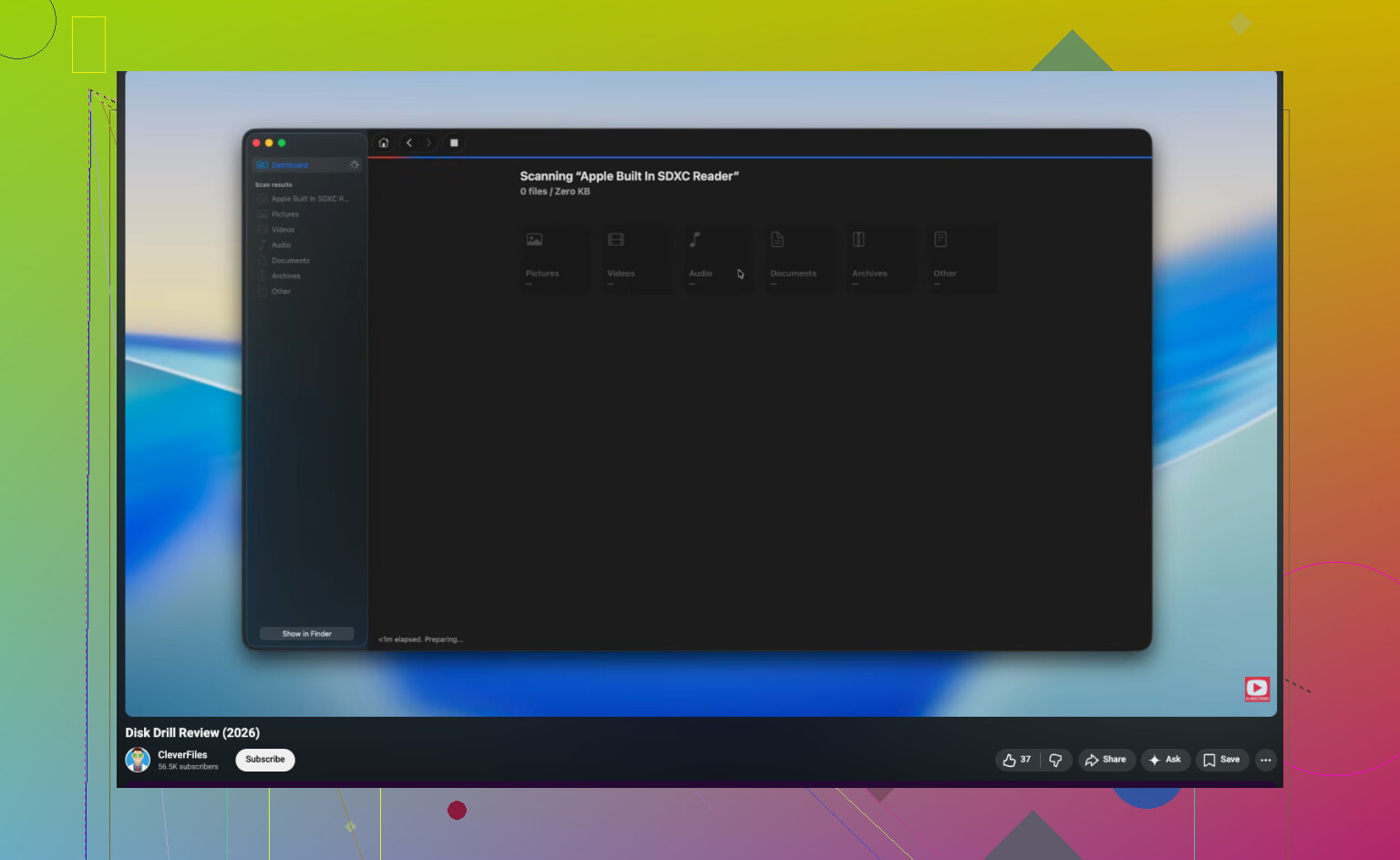
If software recovery is needed, Disk Drill is reasonable, but I’d use it after hardware sanity checks. Pros: easy previews, decent folder-based recovery when metadata survives, can image first. Cons: deep scans can be noisy, large scans take forever, and recovered names may still be messy if the file system is damaged.
If the files are business-critical and the drive starts slowing down while reading, stop DIY there. Slow reads are where people turn recoverable into dead.