My USB drive suddenly became corrupted after I unplugged it, and now my computer says it needs to be formatted before I can open it. It has important work files and personal photos that I really need to recover. I’m looking for the best way to recover data from a corrupted USB drive without making the problem worse.
I’ve been in this mess before. A flash drive looks fine one day, then Windows refuses to open it or throws the format prompt in your face.
First move, slow down. I would not format it yet. I would not run CHKDSK yet either. Same goes for random “repair” apps from search results. I did that once on an old stick with work docs on it, and it made the follow-up recovery worse. If your files matter, protect the data first, fix the drive later.
Why USB drives end up corrupted
From what I’ve seen, the cause is all over the place:
- Pulling the drive out during a transfer
- File system damage
- NAND wear after years of use
- Malware
- Power loss during writes
- Bad USB drivers or flaky ports
- Physical damage to the connector or board
Old flash drives get weird. One day they mount. Next day they show RAW, freeze Explorer, or vanish mid-copy. I’ve seen all three.
When I’d try software first
I’d still try recovery software if the drive shows some signs of life:
- It appears in Disk Management
- The size looks correct
- Windows asks to format it
- The partition shows as RAW or inaccessible
If you’re in one of those cases, there’s still a decent shot at pulling files off without opening the device or sending it out.
When I’d stop messing with it
There are a few red flags where I would quit the home-fix route fast:
- The drive is not detected anywhere
- It keeps dropping connection
- The USB connector is bent, loose, or broken
- It gets hot fast
- The files are the kind you can’t replace
That heat one is bad news. I had a tiny USB 3.0 stick do that once. It got warm in seconds and disappeared from the system over and over. I left it alone after that.
What I’d use for file recovery
If the device is still readable at some level, I’d go with Disk Drill. I’ve used it on flash drives Windows wouldn’t mount, damaged partitions, and one stick showing up as RAW.
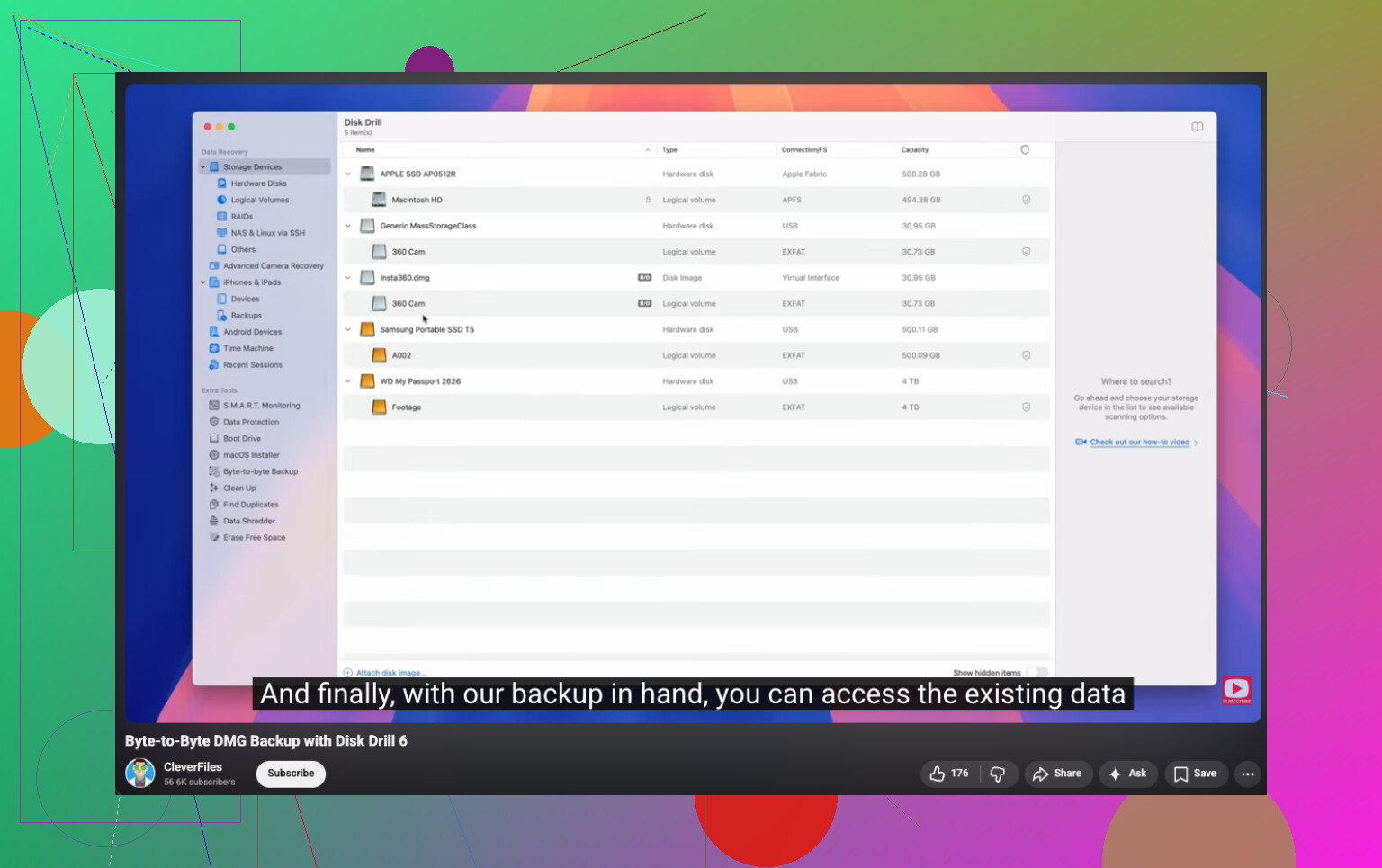
The part I like most is the byte-for-byte backup option. If the USB is unstable, make an image first and scan the image instead of hammering the original hardware. That matters more than people think.
How I’d handle the recovery
- Install Disk Drill on your computer, not on the USB drive
- Plug in the USB stick
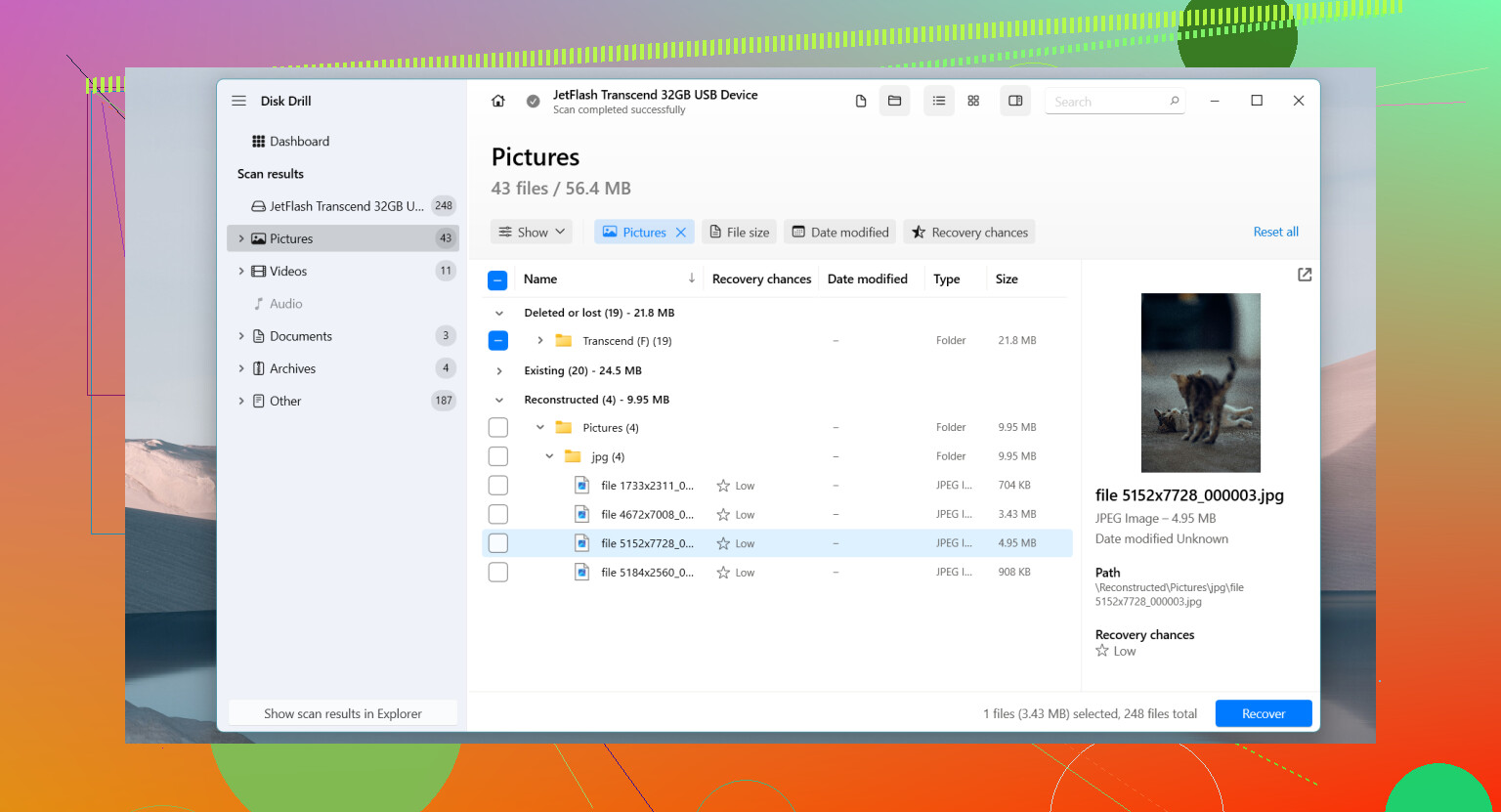
- Open the app and pick the USB device
- If it looks unstable, create a byte-to-byte backup first
- Run the full scan
- Preview what it finds
- Recover the important files to another drive
Do not save recovered files back onto the same USB. I know it sounds obvious, but people do it when they’re stressed and in a hurry.
After the files are safe
Once your data is off, then I’d mess with repair steps.
Stuff worth trying:
- Assign a new drive letter in Disk Management
- Run CHKDSK if the file system looks damaged
- Try Windows Error Checking
- Remove and reinstall the USB device in Device Manager
- Format the drive if corruption keeps coming back
My rule is simple. If a flash drive keeps failing after a format, I stop trusting it. Missing files, failed writes, random disconnects, repeat corruption, any of those are enough for me. These things are cheap. Your data isn’t.
3 Likes
Do not format it. And I’d hold off on CHKDSK at first too, same as @mikeappsreviewer said. Where I differ a bit is this, before you throw recovery software at it, check what kind of failure you have.
Quick triage:
- Open Disk Management.
- See if the USB shows the correct size.
- If size is wrong, like 0 bytes or some weird number, that points more to hardware or controller failure.
- Try a different USB port, and a different PC if you have one.
- If Linux is available, boot a live USB and see if it mounts there. Linux sometimes reads drives Windows refuses to open.
If the drive is stable and visible, Disk Drill is a solid pick for USB data recovery. I’d recover the most important photos and work files first, not everything at once. Small batches reduce fails on flakey media. If previews work, your odds are beter.
If the USB disconnects, clicks, freezes File Explorer, or gets hot, stop. Every reconnect can make things worse. At that point, pro recovery is the safer path.
This vid helped explain USB file recovery steps in plain English:
step by step USB drive file recovery video guide
After recovery, retire the stick. Corrupted once after unplugging is annoying. Corrupted twice means trash it.
If the drive still shows up at all, one thing I’d add to what @mikeappsreviewer and @ombrasilente said is: check the S.M.A.R.T.-style health info if your USB controller exposes it, or at least watch Windows Event Viewer right after plugging it in. Sounds nerdy, but repeated disk/reset errors there can tell you real fast whether this is file system corruption or the stick itself dying.
I slightly disagree with the “try Linux early” advice only because some flaky USB sticks behave worse the more you keep mounting them on different systems. If the files are super important, I’d minimize experiments and go straight to imaging or scanning.
Also, if File Explorer hangs when you click the drive, don’t keep forcing it. Use something that reads the device more carefully. Disk Drill is fine for this, especially if you can scan the USB and pull the most critical folders first. I’d start with docs/photos only, not the whole thing in one pass. Less stress on a failing stick.
Another overlooked trick: check whether your files were actually copied into a hidden folder structure after corruption. Sometimes the data is still there but the directory table is trashed. A proper recovery scan can still surface them by signature.
If you want more opinions on USB recovery tools, this thread is worth skimming:
best flash drive recovery software recommendations
One more thing people forget: if the USB was encrypted with BitLocker or vendor security software, recovery gets way more annoying, so mention that before trying random fixes. And yeah, if it starts disconnecting, stop messing with it. That’s the point where DIY turns into how-did-I-make-this-worse territory realy fast.
One thing I’d add that @ombrasilente, @sognonotturno, and @mikeappsreviewer only touched indirectly: check whether the problem is the partition table, not just the file system. In Disk Management, if the USB shows as unallocated but the full capacity is there, that sometimes means the partition metadata got nuked while the actual file data still exists. In that case, “repairing” too early can overwrite exactly what you need.
My take: don’t keep plugging it in over and over just to test. I slightly disagree with the “try lots of environments” approach if the stick is acting unstable. Every mount attempt is more reads, more controller activity, more chances for it to fall over.
What I would do next:
- Use a sector-level image tool first if possible
- Work from the image, not the USB
- Then scan the image with Disk Drill
Disk Drill pros:
- good at finding files on RAW/corrupted removable media
- preview helps verify if recovery is real before saving
- image/backup workflow is useful on weak USB sticks
Disk Drill cons:
- deep scans can take a while
- recovered filenames/folder structure are not always perfect
- best results usually come from the paid version
If Disk Drill doesn’t see meaningful data, that does not always mean the files are gone. It can also mean controller-level failure, which software recovery usually won’t fix. If the files are truly irreplaceable, stop before experiments pile up. That is where pro recovery starts making more sense than home attempts.