My SD card suddenly stopped showing my photos and videos after I removed it from my camera and put it into my Windows 11 laptop. I’m hoping to recover important files without paying for software right away. Can anyone recommend a decent free SD card recovery tool for Windows 11 that actually works and is safe to use?
I’ve been through this with an SD card after wiping a batch of photos by mistake. First thing, stop using the card now. When files get deleted, the card usually drops the entry pointing to the data. The data itself often sits there until something new gets written over it. If you keep shooting photos or copying files onto the card, you shrink your odds fast.
If you want the short version, these are the tools I’d look at first:
- Disk Drill
This is the one I’d hand to most people. It’s easy to figure out, previews files before recovery, and it does well with normal deleted photos and videos. I’ve also seen it handle unreadable SD cards better than some cheaper tools. One thing I liked, it deals with chopped-up video files from GoPros, DJI drones, and mirrorless cameras better than a lot of apps I tested. It also reads common RAW formats like Canon CR2 and CR3, Sony ARW, and Nikon NEF. On Windows, the free recovery limit is 100MB. - UFS Explorer
This one feels more like a tool for people who don’t mind extra menus and settings. It’s less friendly at first glance, but the scan quality is strong, especially on damaged storage. If your card is in rough shape, this is one of the names people keep bringing up for a reason. You get more control, which helps if the simple apps miss stuff. - Recuva
Good for basic cases on Windows. If you deleted a few JPGs or MP4s and the card still behaves normally, this is often enough. It’s small, quick to install, and easy to run. I would not lean on it for messy recoveries or weird camera file structures. - R-Photo
Free, Windows-only, and focused on media. I liked the thumbnail view because it saves time when you’re sorting through a pile of deleted shots and clips. It’s a decent pick if your goal is photo and video recovery without a lot of extra clutter.
One mistake people make, and I almost did it myself, is saving recovered files back onto the same SD card. Don’t do that. Save everything to your computer or to another external drive. Writing back to the card risks overwriting the exact files you’re trying to pull out.
If the card is acting weird, disconnecting, freezing, reading slow, or showing errors, I’d be more careful. In that case, use software with a byte-for-byte backup option, or make a disk image first. I prefer scanning the image instead of hammering the original card over and over. Less risk, fewer regrets.
So yeah, don’t panic yet. Put the card in a reader, run a scan with preview enabled, and see what still shows up. If the files haven’t been overwritten, you’ve got a fair shot.
42 Likes
Try this order.
-
Check Disk Management first.
If the SD card shows a drive letter and correct size, your odds are better. If Windows asks to format it, do not format it yet. -
Run Windows Error Checking only if the card shows files but looks broken.
I disagree a bit with @mikeappsreviewer here. I would not start with repair tools on a card with missing photos, because chkdsk sometimes ‘fixes’ things by changing the file system and making recovery messier. Recovery scan first, repair later. -
Best free tools for your case.
Recuva, if the card still mounts cleanly and you want a fast first pass.
PhotoRec, if you do not care about folder names and want raw file carving. It is ugly, but it finds a lot.
R-Photo, if you want a free Windows tool focused on pics and video.
Disk Drill is still worth a try because the scan and preview are easy to use. Short Disk Drill review, simple interface, solid SD card recovery on Windows 11, strong photo and video preview, and useful for camera cards when files vanish after removal. The free Windows limit is small, so test with it before paying. -
Save recovered files to your laptop, not the SD card. People mess this up alll the time.
-
If the card disconnects or reads 0 bytes, stop software tests and image it first.
This clip gives a quick look at how Disk Drill handles SD card recovery.
If you post what Disk Management shows, file system, size, RAW or exFAT, people here can narrow it down fast.
I’d add one thing neither @mikeappsreviewer nor @shizuka really leaned on enough: test the card in the camera again before you go too deep into software. I’ve seen cards look “empty” in Windows because the laptop reader was the actual problem, not the SD itself. Cheap built-in readers are kinda garbage sometimes.
For actually free tools on Windows 11, my shortlist would be:
- PhotoRec: ugly as sin, zero hand-holding, but absurdly good at pulling photos/videos off busted cards. Downside: filenames/folders usually come back as a mess.
- R-Photo: probably the nicest truly free option if you mostly care about images and clips.
- Windows File Recovery: Microsoft’s own command-line thing. Not fun, but free. Worth a shot if you don’t mind typing commands.
- Disk Drill: not fully free on Windows, yeah, but still very useful for scanning and previewing what’s recoverable before you spend a dime. That alone can save you time if the card is half-dead.
One place that covers best ways to recover videos from an SD card has some decent real-world comments too.
My order would be:
- Try another card reader or camera USB connection.
- If it shows up, copy the whole card as an image if possible.
- Scan with R-Photo or PhotoRec first.
- Use Disk Drill to preview if you want a cleaner interface.
- Do not run CHKDSK first. I know people love recommending it, but for missing media it can make stuff worse. Been there, regretted that.
If the card shows 0 bytes, disappears randomly, or gets super hot, stop messing with it. That starts drifting into hardware failure territory real fast.
One extra angle: check whether the card got flipped to hidden/system attributes rather than actually losing files. I’ve seen camera cards mount in Windows with DCIM invisible because of a weird metadata hiccup. Open Command Prompt and run attrib -h -s /s /d X:\*.* using the SD card letter. Low risk compared with CHKDSK.
I partly disagree with the “just use PhotoRec first” crowd. Great recovery rate, yes, but if you have lots of clips, the filename chaos is brutal. For sorting sanity, R-Photo or Disk Drill are often better first looks.
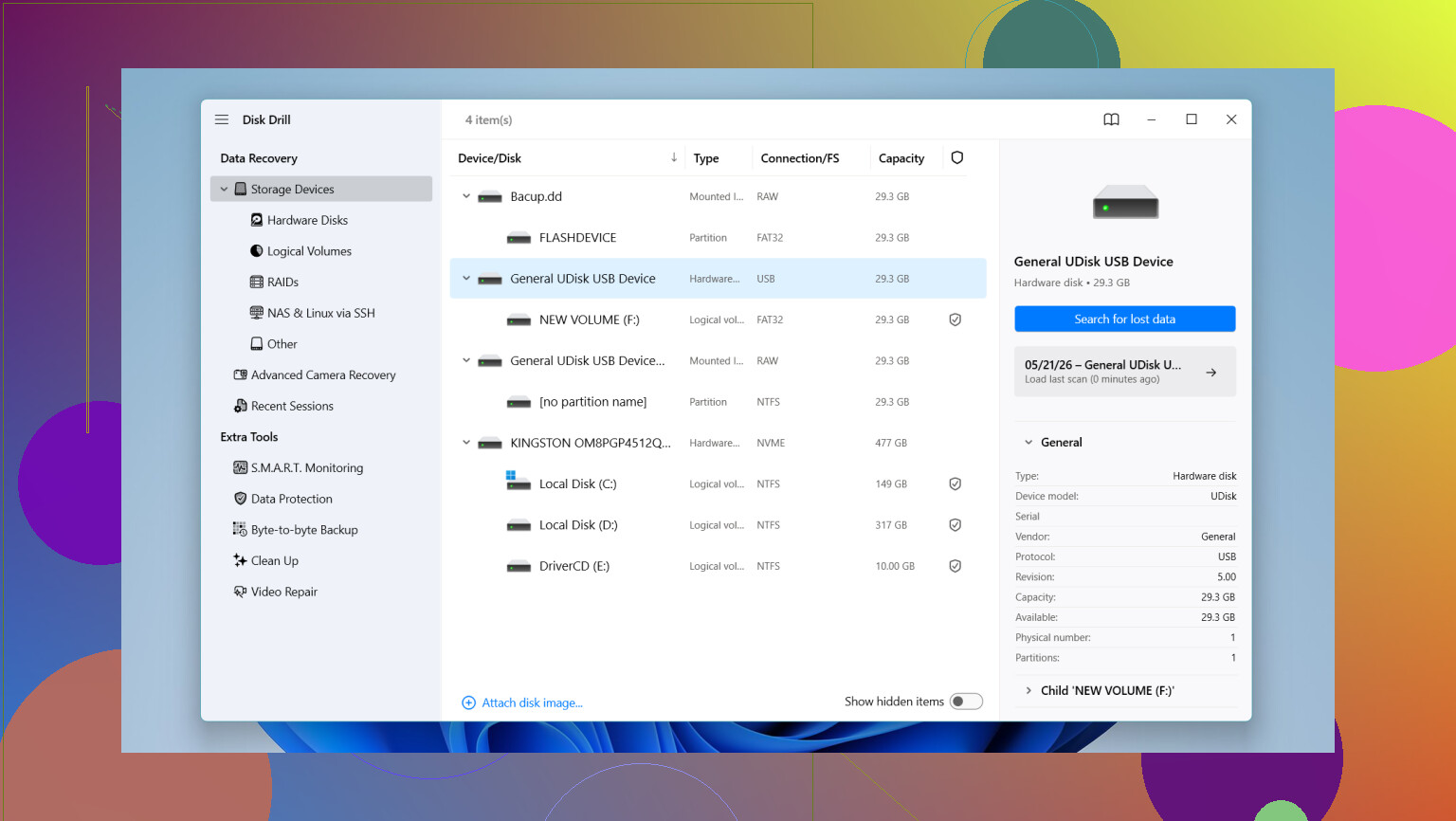
Disk Drill pros: very easy preview, good with photos/video, decent interface for checking if recovery is worth it.
Disk Drill cons: Windows free recovery cap is tiny, deeper recovery is paid, and it can feel slower on big cards.
@shizuka, @viajeroceleste, and @mikeappsreviewer already covered the core recovery path well. I’d just add: if the card was used in an Android device or newer camera, Windows may simply dislike the filesystem. In that case, try reading it through the camera’s USB mode before assuming real corruption.
Try a phone or tablet with an SD card adapter. Open the card in its Files app, then copy any visible photos to internal storage or cloud storage. This bypasses the Windows reader, drivers, and drive-letter issues in one step.
Also enable “Show hidden files” in the Files app. Some damaged cards mark folders as hidden, even though the photos still exist. If DCIM appears, copy the full folder right away. Do not move files or rename anything. This quick check takes 5 minutes and needs no recovery sofware.
People keep framing Disk Drill as just the pretty preview tool with a stingy free cap, and that undersells the one thing that actually matters for a flaky card: it can build the byte-for-byte image itself. So the whole ‘image it first’ advice everyone keeps repeating doesn’t need a second app. You image the card, then point the scan at the image and never touch the original again. That’s where it earns its spot for me, not the interface.
The thing nobody’s really flagged: cards that go blank right after you pull them from a camera are often mid-write corruption, not deletion. If you yanked it before the camera finished flushing, the file table is half-written. Carving tools like PhotoRec shine there because they ignore the broken table completely. So @shizuka is right that recovery scan comes before any repair, but I’d go one step further and assume the table is toast rather than hope chkdsk salvages it.
Quick reality check too, run the recovered files after you pull them. Half-overwritten videos preview fine as a thumbnail and then won’t play past two seconds. A thumbnail is not a working file.