I accidentally deleted a GPT partition while managing my disk, and now the drive data is no longer accessible. What is the safest GPT partition recovery method to restore the partition without overwriting files or making the damage worse?
First thing: don’t write anything else to that drive. Seriously, stop there. If it’s your boot drive, power down and use a live USB. If it’s an external or secondary disk, unmount it or unplug it until you’re ready to work on it. The files may still be there, but every new write increases the chance of overwriting something you actually want back.
The one bit of good news is that GPT disks are usually a little more forgiving than old MBR disks. GPT keeps a backup partition header at the end of the drive, so if the main one got damaged, recovery is often still possible.
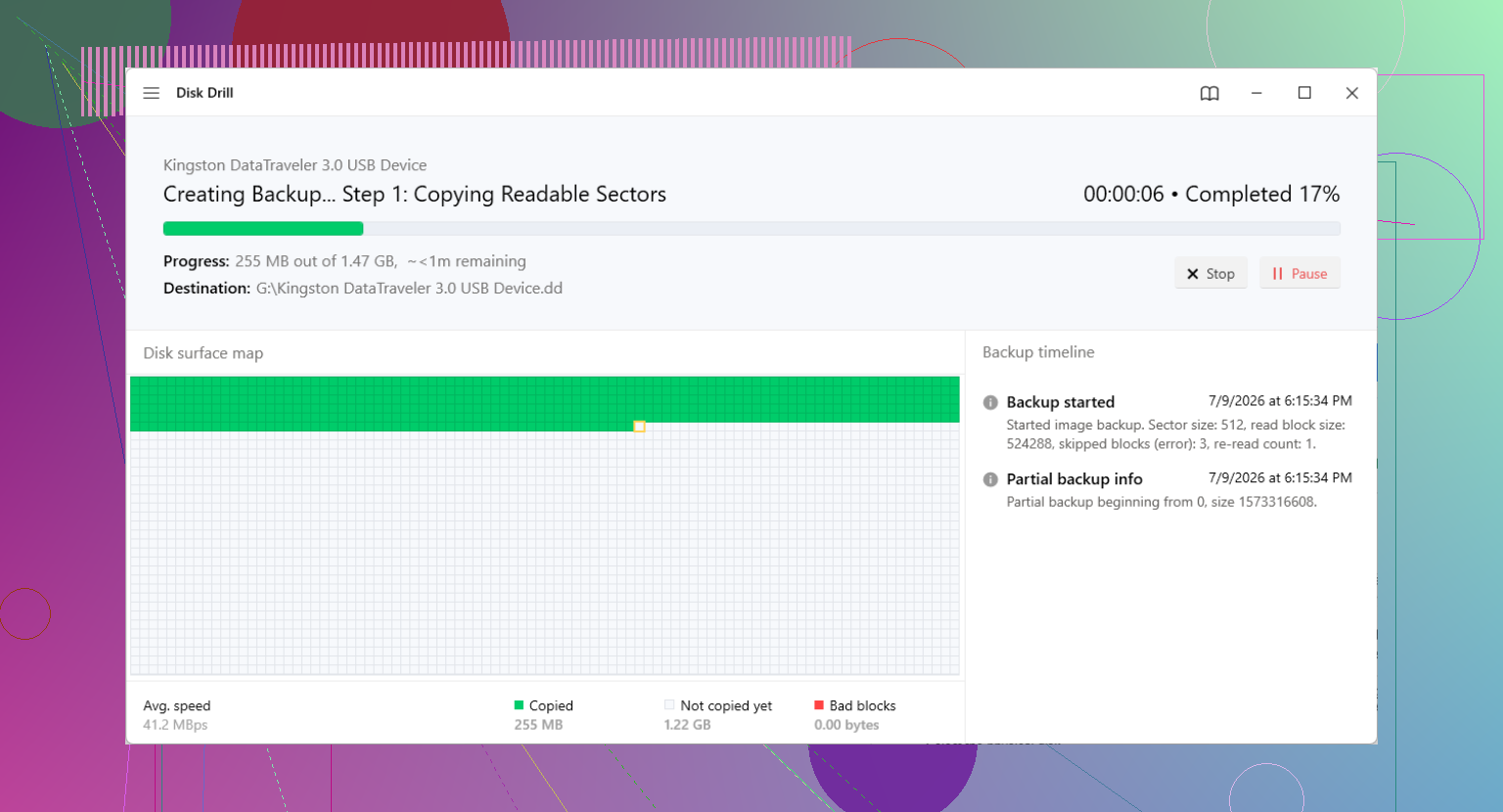
If you have another drive with enough free space, make a sector-by-sector image before trying repairs. Use dd, ddrescue, or a commercial imaging tool if that’s more your speed. The point is to work on a copy instead of poking at the only version of your data. If a repair attempt goes badly, you can start over from the image.
For most people, recovery software is the safer first move. When the partition table is broken, Windows or macOS might act like the partition is gone, but the actual file data can still be sitting there.
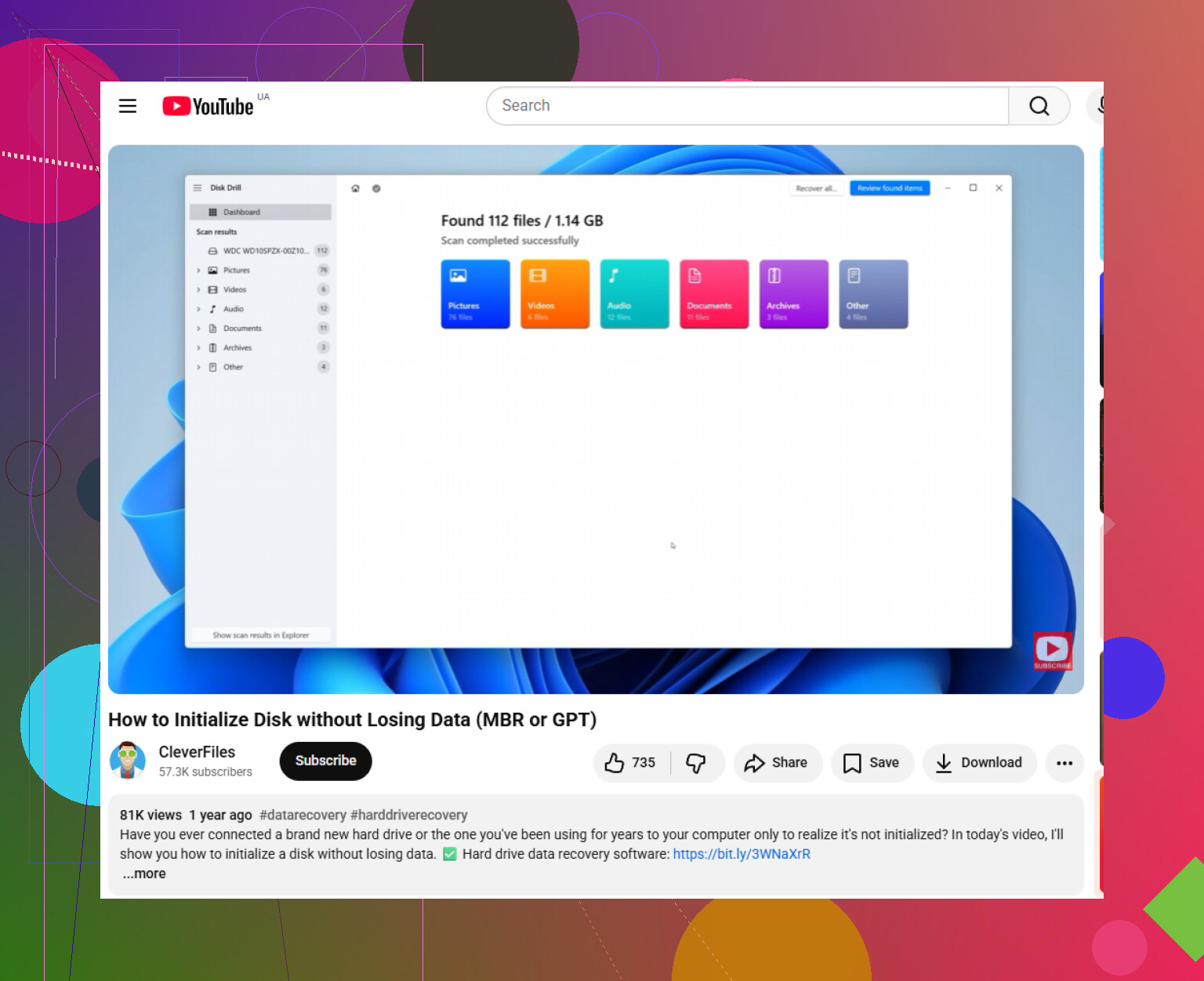
Disk Drill is a solid option for this kind of GPT problem. It can scan the physical disk directly, look for lost partitions and file system signatures, and show previews before you recover anything. It also handles common file systems like NTFS, FAT32, and exFAT, and it can work with drives that show up as RAW.
The basic flow is pretty simple:
- Pick the physical disk, not just a visible volume.
- Run the “Search for lost data” scan.
- Check the “Existing” and “Reconstructed” results.
- Save recovered files to a different drive.
If you’re comfortable with more technical tools and want to try restoring the partition itself, look at TestDisk or gdisk.
TestDisk has been around forever and is still useful. It scans for old partition signatures, and if it finds the right ones, it can write those entries back to the partition table. The scan itself is safe enough, but once you choose “Write,” it modifies the disk, so don’t do that unless the layout it found actually makes sense.
gdisk can also help with GPT-specific damage. Since GPT stores a backup header at the end of the disk, gdisk’s recovery options can sometimes rebuild the primary header from that backup. That’s especially useful when only the start of the drive got messed up.
One more thing: if Windows shows the disk as a “GPT Protective Partition,” don’t rush into Diskpart and run “clean.” That can happen after a hardware change, like moving a drive from a USB dock to internal SATA, or because of a sector-size or driver mismatch. “Clean” wipes the partition table, which is the opposite of what you want before recovery. Get the files off first with something like Disk Drill, then worry about fixing or reformatting the disk.
10 Likes
A deleted partition entry and a formatted partition are two very different jobs, so don’t “initialize” or format it just because Windows asks. If only the GPT entry is gone, TestDisk/gdisk may put the partition back, but if anything has been recreated on that space, I’d recover files to another disk first with something like Disk Drill rather than trying to repair the table in place. The safest method is still image the drive, scan the image, then write nothing back until the data is copied off.
If the partition was only deleted and the space has not been reused, recovery is often possible. If the drive was reformatted, repartitioned, used after deletion, or it is an SSD where TRIM already ran, expect a much messier recovery.
I agree with the image-first advice above, but I’d be more cautious about “restore the partition” as the first goal. Restoring the GPT entry feels nice because the drive might suddenly mount again, but it is still a write to the problem disk. If the tool guesses the wrong start or end sector, you can turn a recoverable situation into a worse one.
The safest order is:
- Stop using the disk.
- Clone or image the whole physical drive to another drive.
- Scan the clone/image.
- Copy recovered files to a third location or at least a different disk.
- Only after the important files are safe, try repairing the GPT table.
That order is slower and annoying, but it avoids gambling with the only copy of the data.
A thing people forget: do not let Windows “fix” the drive. No Initialize, no Format, no Convert, no chkdsk, no “scan and repair.” Chkdsk is not a recovery tool. It is meant to make a file system consistent, and it can delete or rename damaged file records while doing that. Great when you have backups, bad when the disk itself is the only backup.
For the actual method, it depends what happened.
If you only deleted the partition entry in Disk Management and did nothing else, TestDisk is probably the cleanest free tool to try. Let it analyze the disk and look for the old partition boundaries. If it finds a partition with the expected size and file system, you can inspect the files before writing anything. Don’t press Write just because it found something. Check that the start sector, size, and file list make sense.
If the GPT header is damaged but the backup GPT at the end of the disk is intact, gdisk can sometimes rebuild the primary GPT from the backup. That is more of a partition table repair job than a file recovery job. It is useful, but it assumes the backup layout is still correct.
If the partition was recreated, quick-formatted, or the disk now shows as RAW, I would stop thinking about “putting the partition back” and focus on copying files out. Disk Drill, R-Studio, UFS Explorer, DMDE, and similar tools can scan the whole device for file systems and file records. Disk Drill is easier for non-technical users and previews are useful, but save recovered files somewhere else. Never recover back onto the same drive you are scanning.
There is one more edge case: encryption. If the missing partition was BitLocker, VeraCrypt, FileVault, or something similar, generic file carving may give poor results because the data area is encrypted. In that case you really want the partition boundary restored or detected correctly, then unlock it with the original password/recovery key. If you don’t have the key, partition recovery will not magically decrypt the files.
For an external drive, I’d try to keep the hardware path the same while recovering. Some large drives behave differently through different USB docks or adapters because of sector size translation. A disk that was originally used in a specific enclosure may look wrong when connected through another adapter. That does not mean the data is gone, but it can make recovery tools show strange partition offsets.
My practical take: if the files matter, clone first and recover files before repairing. If the files are replaceable and you mainly want the partition back quickly, TestDisk or gdisk can be worth trying, but only after confirming the detected partition is the right one. The riskiest move is clicking through Windows prompts because the drive “looks empty.” That is how a simple deleted GPT entry becomes a real recovery job.